Browser sessions
Drive a real cloud browser over CDP with Playwright or Puppeteer, and watch it live in your dashboard. A Browserbase-style primitive backed by a qbox sandbox.
A browser session is a sandbox running headful Chromium that you drive from the outside over the Chrome DevTools Protocol (CDP) — with Playwright, Puppeteer, or any CDP client — and watch live in the dashboard.
wss://<browser_id>.browser.<your-domain>/cdp # connect your automation hereAutomation (CDP) flows straight through the edge proxy to Chromium in the guest; the control plane only handles routing and access, never the bytes.
Create a session
import qbox

browser = qbox.Browsers.create(
    template="tpl_…",                       # a browser-capable template
    viewport={"width": 1280, "height": 720},
    start_url="https://duckduckgo.com",     # the page it opens on
    visibility="public",                    # public | private | signed_url
)
browser.wait_until_ready(timeout=60)
print(browser.connect_url)                  # wss CDP endpoint
print(browser.live_view_url)                # embeddable live view
You need a browser-capable template — build one from the qbox/browser base
image (it’s offered in the dashboard’s template-creation screen). A regular
sandbox template won’t work.
Connect with Playwright
from playwright.async_api import async_playwright

async with async_playwright() as pw:
    pw_browser = await pw.chromium.connect_over_cdp(browser.connect_url)
    page = await pw_browser.contexts[0].new_page()
    await page.goto("https://example.com")
    print(await page.title())
Puppeteer and any other CDP client connect the same way, using connect_url.
Watch it live
Every session exposes an interactive live view you can embed in an iframe at
live_view_url. It streams the browser over WebRTC and lets you click and type
directly in the page.
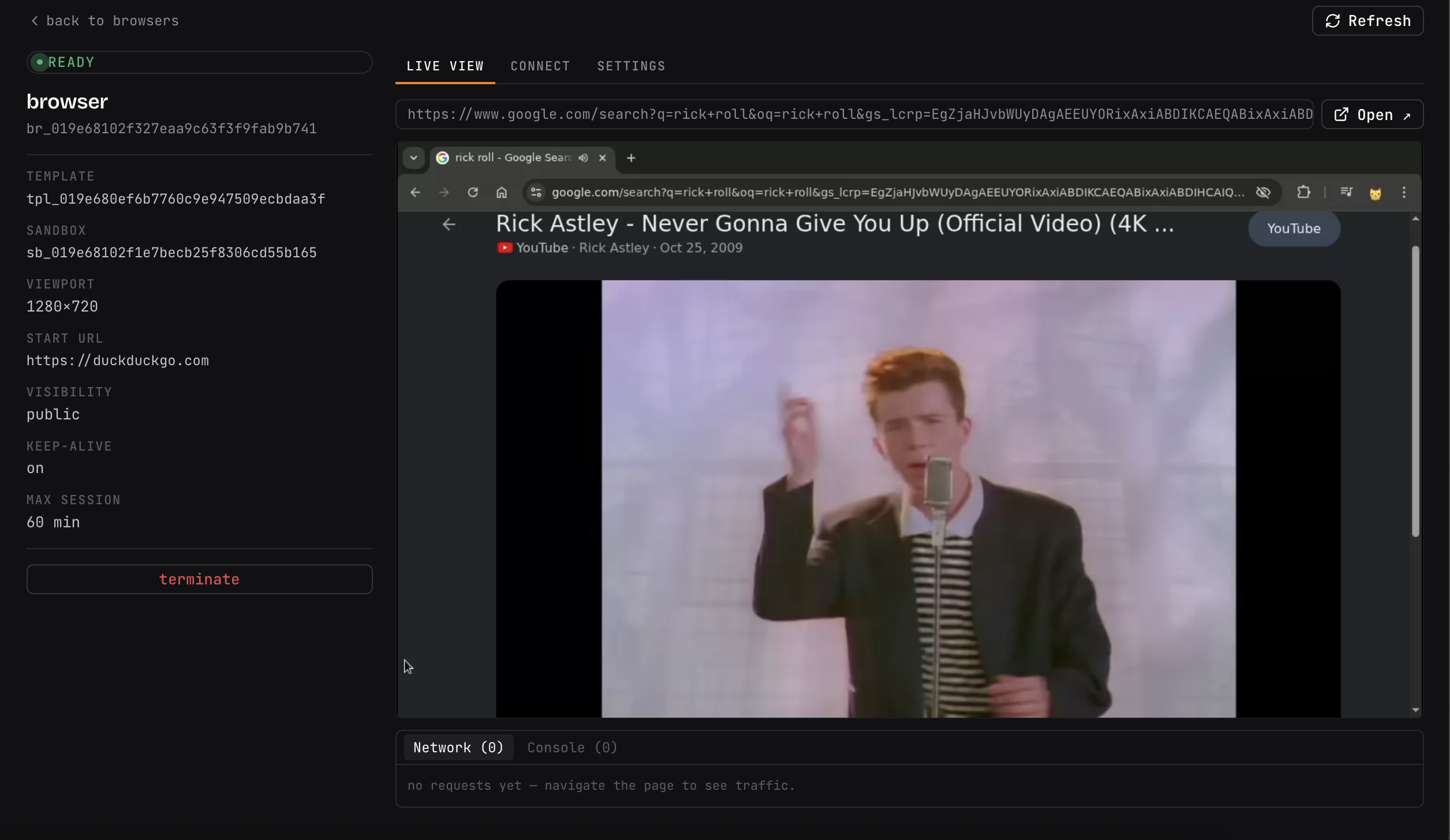
<iframe src="{browser.live_view_url}" allow="autoplay; clipboard-read; clipboard-write" />live_view_url opens directly — no separate login step. The live view comes up
a moment after CDP; if you embed it the instant a session goes ready, pass
wait_for_live_view=True to create() (or ?wait=true on the API) so the
session isn’t reported ready until the live view is serving. Automation-only
callers leave it off and connect as soon as CDP is up.
Visibility
| Tier | Who can open the live view / CDP |
|---|---|
public (default) | anyone with the URL |
private | requires a qbox dashboard session (needs HTTPS + a shared cookie domain) |
signed_url | a time-limited signed link — mint_signed_url(ttl=…) |
public is the default because private needs the dashboard session cookie to
reach the *.browser.<domain> subdomain (HTTPS + QBOX_COOKIE_DOMAIN). Use
signed_url for shareable, access-controlled links without that setup.
Lifetime
By default a session ends when the controlling CDP connection disconnects (the Browserbase model). Override it:
browser = qbox.Browsers.create(
    template="tpl_…",
    keep_alive=True,        # survive CDP disconnects
    timeout_seconds=3600,   # hard ceiling (default 1h, max 6h)
)
CLI
qbox browsers create --template <tpl-id> --viewport 1280x720
qbox browsers list
qbox browsers connect-url <browser-id>
qbox browsers live-view <browser-id>
qbox browsers terminate <browser-id>
Self-hosting requirements
CDP automation (connect_url) works out of the box — it rides the same proxy as
everything else. The live view streams video over WebRTC, which is UDP and
needs a TURN relay (bundled coturn) to cross NAT. The installer wires this
automatically; for a manual deploy set, in your .env:
QBOX_TURN_HOST=<your public host or IP>   # same address as the dashboard
QBOX_TURN_PASSWORD=<a strong secret>
and open these UDP ports on the host and any cloud firewall:
- 3478 — the TURN listener
- 49160–49200 — the media relay range
Without coturn reachable, automation still works but the live view won’t connect. See Configuration → Browser sessions for the full list of TURN settings.
HTTPS deployments
Browser sessions are served on *.browser.<your-domain> subdomains. If your
dashboard is served over HTTPS, those subdomains must be HTTPS too — a browser
blocks ws:///http:// content loaded from an HTTPS page (“mixed content”), so
the live view and CDP connection fail with a console error like “attempted to
connect to the insecure WebSocket endpoint ws://…”.
To serve them over wss:///https://, set in your .env:
QBOX_PROXY_SCHEME=httpsthen docker compose up -d. The control plane now hands out wss:///https://
URLs, and Caddy obtains a TLS certificate per browser subdomain on demand
(HTTP-01, authorized by qbox-proxy) — so you do not need a wildcard
certificate or DNS-01. You only need:
- a wildcard DNS record
*.browser.<your-domain>→ your host’s IP, and - ports 80 and 443 reachable (for certificate issuance + serving).
Each session is a new subdomain (a new certificate), so very high session churn
can hit Let’s Encrypt rate limits
(certs per registered domain per week); for heavy production use, provision a
wildcard cert via DNS-01 instead. Leaving QBOX_PROXY_SCHEME=http (the default)
keeps everything on HTTP — fine if you reach the dashboard over HTTP, but an
HTTPS dashboard with HTTP subdomains will mixed-content-block the live view.
Troubleshooting. If a browser subdomain fails TLS (tlsv1 alert internal error from curl, EPROTO from a CDP client, or the live view stays blank),
on-demand issuance isn’t completing. Check that port 80 is reachable from the
public internet (Let’s Encrypt validates over HTTP-01 there), that you’re under
the rate limit, and that *.browser.<domain> resolves. If issuance stays flaky,
use a wildcard cert (DNS-01) — that sidesteps per-subdomain issuance entirely.